A Wow Website for Logo Resources

25 December 2006


Best brands of the World is World's one of the most visited web sites intended for browsing and exchange of the World's famous brand-logos. The primary use of site is to enable designers to access vector-forms of the well-known brand-logos that they can use in their presentations, given the permission of the copyright owner. The web site also enables designers to upload their own works and professional details.


Tons of logos all EPS files, here one can browse the collection by category.

READ MORE...

Some Cool Freeware Digital Arts Apps.

23 December 2006

Artrage 2

With Art Rage, you can paint with oils, sketch with pencils, sprinkle glitter, and more. You can paint with gold leaf, silver foil, and other metallic colors. You can even load in your photos as Tracing Images to help you recreate them as paintings.


For the professional user, ArtRage also offers multiple Layers for painting, and layered PSD document import and export so you can easily use it alongside your existing tools.


Paint.NET

Paint.NET is free image editing and photo manipulation software designed to be used on computers that run Windows. It supports layers, unlimited undo, special effects, and a wide variety of useful and powerful tools.

Artweaver

Artweaver is a simple Freeware program for creative painting, i.e. Artweaver offers you all artistic effects which you need for your work.

READ MORE...

Yes, Thats Real!!!

22 December 2006

When I first started with Adobe Illustrator, I found it a little tough programme to understand, & that is to say, at that point of time I was already a intermediate everyday user of photoshop!!! So, the best thing I do in that situation is to resort to a book, yes, mostly I prefer to learn things from books, atleast to initially get myself started.....& the best things about books is you can always go back & refer to them, in case you need a ans. to anything related to your programmes!!!

And, the book that came to my rescue was Real World Illustrator CS2, by Mordy Golding. I really learnt a lot from that book. The book is not about showing or teaching you the tips or tricks by which you could make the graphics to wow others, but rather, its the book that focuses on making you understand each & every aspects of all the tools, menu items, palettes & how you can optimize your performance alongwith gaining control over the programme. It is a definitive reference for the serious Illustrator user!

Apart from the above the other best thing is that, the author Mordy Golding has a blog too, which is a 'must read' for me regularly....you gotta read the blog to know what I am meaning to say, check it out!!! :D

READ MORE...

Fire Effect

21 December 2006


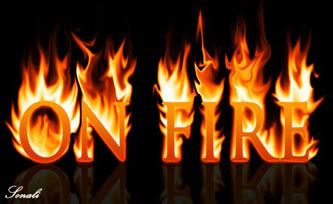
I made this fire effect in Photoshop sometime back, many have asked me how I did this, for this so very realistic fire effect I followed a tutorial by none other than digital photo realist artist & guru, Bert Monroy! The link to the said tutorial can be found here! :D Though I followed this tutorial, I also applied my own techniques for reflections, texts etc.!

READ MORE...

Photoshop Actions....

19 December 2006

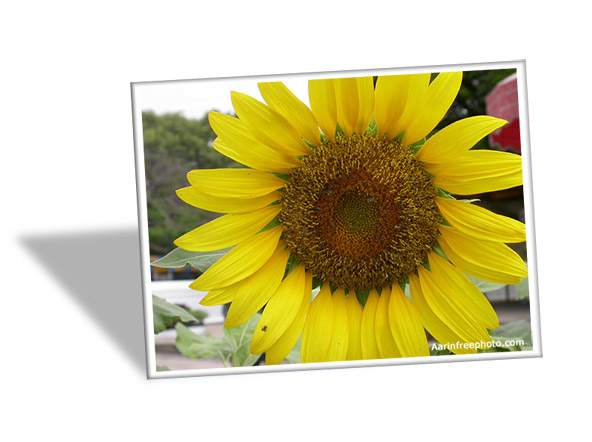
Photoshop Actions are the cool & faster ways to accelerate your job. I created a Action, which I named STANDING PHOTO EFFECT. This was my first attempt at creating a PS Action. It is wonderful to use a nicely made action by others but it is more exciting & a great learning experience to create one!


My Action can be downloaded from following link at Adobe Exchange. You have to be a member over there to download this. There are different set of Actions for Landscape & Portrait images. This Action creates a nice standing photo effect of your image with shadows.


At this date, I am really very excited, that a PS Action, that I had made just for myself has received such a huge response with about more than 7,500 downloads (would be 10,000 if I count both the versions), dozens of users reviews & tons of 5 stars!!!

Apart from, that I later made a another Action, which could be downloaded from Adobe Exchange (link)!!!

READ MORE...

Turn Images Into Shapes

17 December 2006

tute-final.jpg
I wrote a Photoshop tutorial for 13 Dots, of which I am a member since sometime now.So, if you are a Photoshop enthusiast you may like to know how to Turn Images Into Shapes:

I had seen a image effect in a magazine, & thought to do it myself too! So, I stumbled upon this technique after some trial & errors in Photoshop. But, ofcourse I do believe that there are more than one way of doing things in Photoshop!

Step 1:


Open a new document in Photoshop, 600 pixels wide & 600 pixels high with white background. If you are planning to print your image, make the dpi 300 or whatever your printer requires. If it is for the web, 72 dpi is fine.

Step 2:


Create a New layer, name it Shape layer.

Step 3:


Click on Custom Shape Tool (U) on your Tool Box & Select a AirPlane Shape from option bar.


Step 4:


Now, on your shape layer, Create a Airplane shape, hold down shift key whilst drawing the Airplane.

Step 5:


Open your image. I used following image (sxc.hu). Ctrl-a to select all (the whole canvas). Then hold Ctrl and type c. Release both keys. This copies the selection from that image into your clipboard.
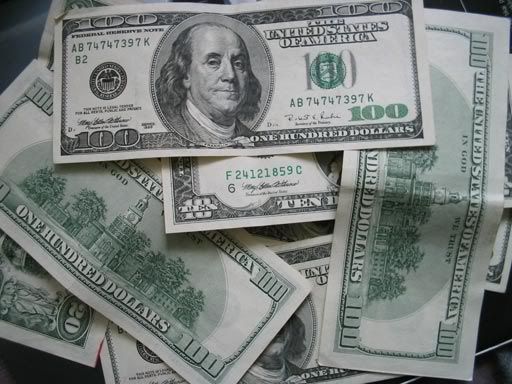


Now we are going to paste this image into our Airplane Shape.

Step 6:


Go back to your file with your Airplane shape and click on your Shape layer in the layers palette to select it. Ctrl-click on your Shape layer thumbnail to select the Airplane Shape.

Step 7:


Edit--->Paste Into, this will put your Image into the Airplane Shape.
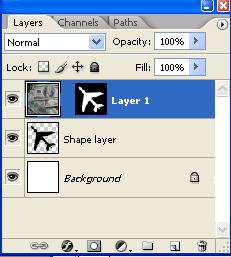
Take a look at your layers palette now,you see your image there and a mask has been made that allows only the Airplane Shape part of the image to show. (Isn't Photoshop intelligent;)

Step 8:


Now, we can edit or resize the image by selecting Ctrl-t or Edit-->Tranform, just be sure to be on the image layer, as you can see above & click on the image thumbnail i.e. layer 1 as above(not layer mask thumbnail) in that layer palette. You can also paste the image twice or thrice & trasform it by following step no.7 & 8.

Step 9:


To make the blue background, click on the background and, with blue as your foreground color, alt-backspace to fill. I also applied a Filter-->Render-->Clouds.

Step 10:


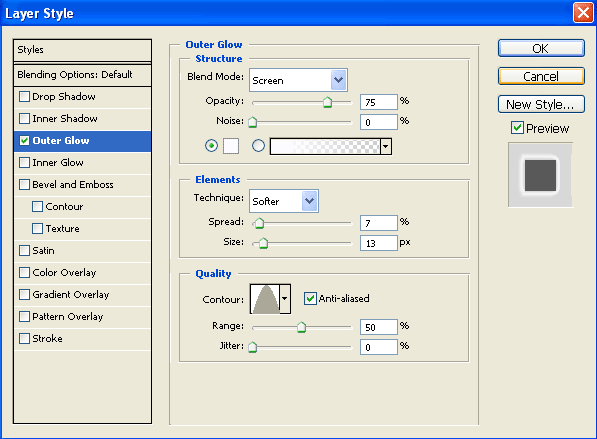
To complete the look you may apply layer style to your Shape layer as in following pic.


And here is my Final Image!

READ MORE...

Text Art

09 December 2006

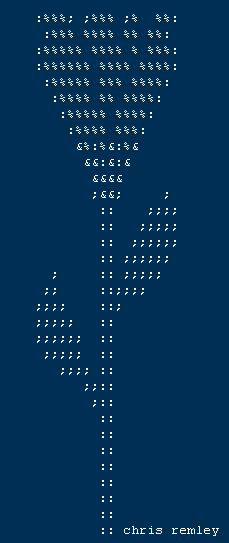
I always wondered how people made those amazing artwork using only symbols and characters available on your computer keyboard.

And now I know how they turn those computer text into masterpiece! Yeahhhhh!!!
If you are also curious just click on this website www.chris.com/ascii.
It has some amazing artwork & if you want to create one of yours there are tutorials which teach you to create your own!

text-art.png

READ MORE...
Blog Widget by LinkWithin