Well, today I will be sharing with you a most often asked but a very simple & useful Photoshop tip....distributing the objects evenly & centering them evenly relative to the canvas in Photoshop!!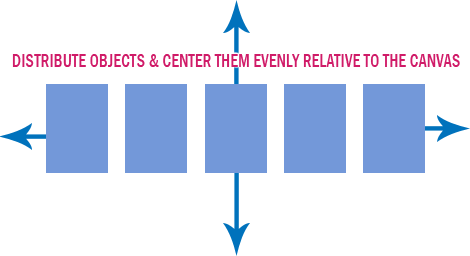
1.Make a rectangle with custom shape in a new layer
2.Duplicate it 4 more times - using move tool whilst pressing alt key, I placed them randomly on canvas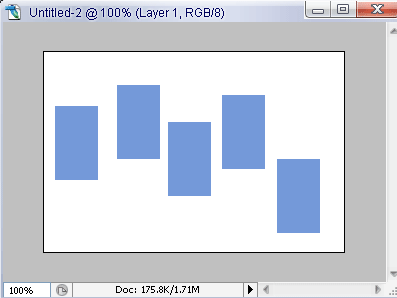
3. Select the first layer, hold down shift key to select other layers & link them with Chain Icon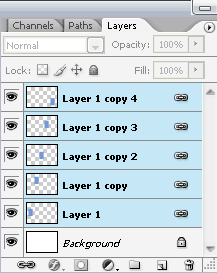
4. Select first layer again to match others top edge with it, then, Go to Layer-Align-Top Edges (Can do same thing from Option Bar too) to have them on same level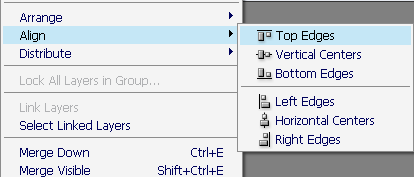
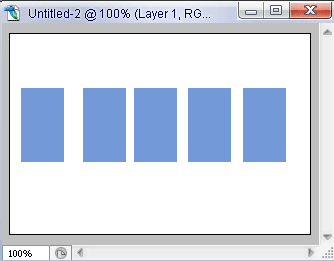
5. Now, to have equal distance bet. each of them, Go to Layer-Distribute-Horizontal Centers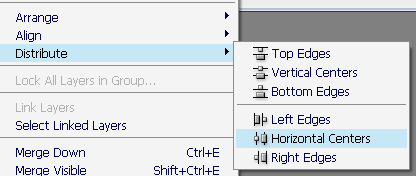
6.This is how my final results look along with History palette, to show the steps!!!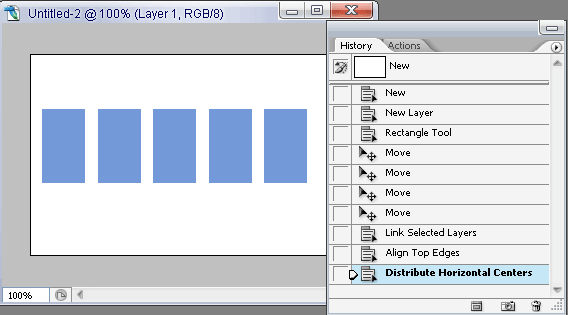
Also make sure, you have no selections by pressing Ctrl/Comm-D (or choosing Deselect from the Select menu). If you don't deselect first, Photoshop aligns to the selection instead of to the layers.
Now, TO CENTER THEM EVENLY RELATIVE TO THE CANVAS:
1. After following the steps mentioned above.
2. Merge all the layers OR the best, Put all the layers in one Group (or Set in PSCS) i.e (layer 1 to layer 5 in above example)
3. Press Ctrl/Comm-A to select the whole image
4. Goto Layer-Align to Selection-Horizontal Centers (Note that, when you have a selection, the Align Linked submenu changes to the Align to Selection submenu)
DO NOT deselect as yet...
5.Then again, Layer-Align to Selection-Vertical Centers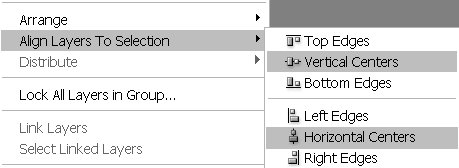
The steps 4 & 5 will align & distribute your shapes exactly in the middle of the Canvas!!!
And, there you're....your objects distributed, aligned & centered evenly to the canvas....& mind you your objects can be anything be it shapes, images, logos, buttons etc.! ! :D
Distribute Objects & Center Them Evenly Relative To the Canvas
11 June 2007Posted by dezign Musings at 4:41 PM 0 comments Twit This
Labels: Design, Graphic Designs, Photoshop, Tutorials
Subscribe to:
Posts (Atom)